
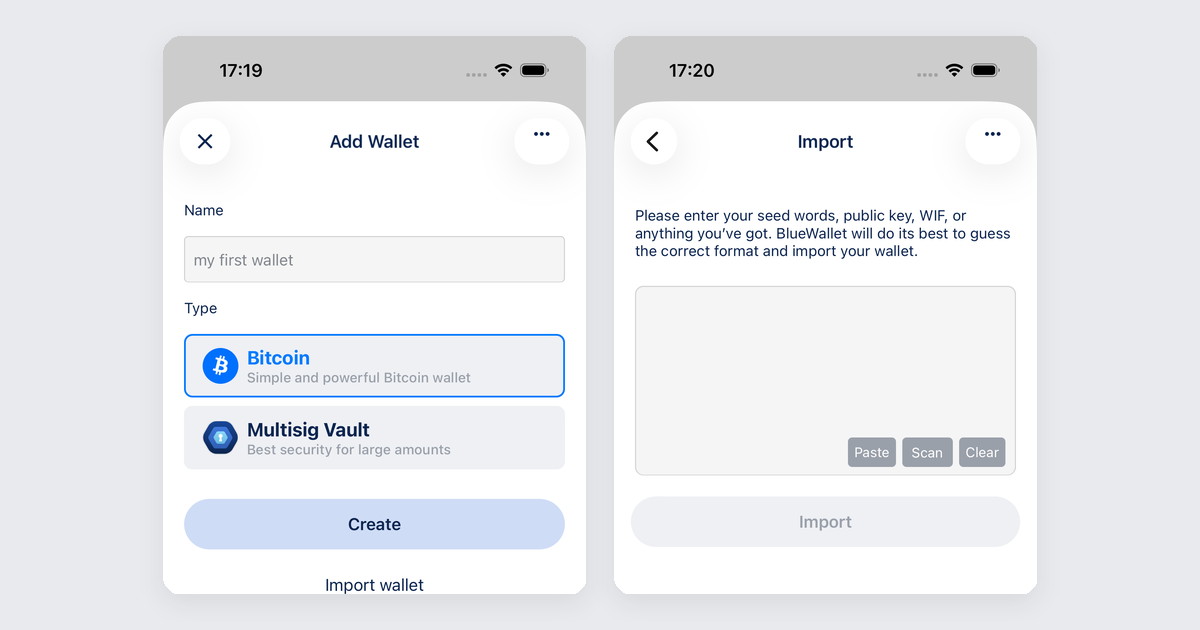
You already have bitcoin. You already have a recovery phrase on paper, in a steel plate, or in the app you are leaving. Import is how that wallet shows up in BlueWallet without creating a new one.
This is not a new seed. This is the old seed, walking in the front door. Treat it like cash on a table: do it on a phone you trust, then put the paper away.
If you wanted to watch a wallet without putting keys on this phone, that is a different job. Use a watch-only wallet and an XPUB. A recovery phrase on this device is a hot wallet. That is the point of this article.
What you can import
BlueWallet detects the format. You do not pick a menu of 14 wallet brands.
- A recovery phrase (the 12 or 24 words, in order)
- A private key or WIF
- A QR backup or a compatible file
Most people are here for the words. Type them as a sentence: no numbers, one space between words, no commas, no “1. clock 2. boat”. If a word looks fake, check the BIP39 English list before you tap Import. One typo and BlueWallet will happily recover a wallet that has never seen a sat.
What you’ll need
- BlueWallet from the download page. Not a lookalike APK.
- The recovery phrase, on paper, in front of you. Not a screenshot. Not Notes.app. Not a photo in the camera roll from 2021.
- A few minutes and a phone that is actually yours.
Import one wallet at a time. There is no bulk import. If you have three phrases, you take three trips.
Set it up
Same path as Import a wallet.
- From the home screen, tap + (top right), then Import wallet.
- Type or paste the words into the field. Paste is fine if they are already on this phone’s clipboard. If they are on paper, type them. Hunt-and-peck is slower and a lot safer than photographing the backup “just this once”.
- Check the order, then tap Import. BlueWallet recovers the wallet and drops it in your list.
Scan is there if the backup is a QR. The ⋯ menu is for the annoying cases. Toggle-level detail lives in Import with a passphrase, Search accounts on import, and Custom derivation path on import.
If the balance looks wrong after import, that is usually a passphrase or a derivation path, not a vanished wallet. Enable Passphrase in the import ⋯ menu if the original backup used a 25th word. If it is still short, turn on Search accounts, then Custom derivation path if you know the path from the old app.
After it lands
Each wallet has its own backup. Open it, then ⋯, then Export/Backup, and confirm the words match the paper you just used. Finding a mismatch now is boring. Finding it during a real recovery is how people write sad threads.
Then put the paper back where it lives. Not in the same bag as the phone. See Backup and export a wallet if you want the full walkthrough.
A small test receive does not hurt. One sat in, one sat you can see, then you sleep.
Common mistakes
- Typing the phrase into a website. No legitimate wallet asks for it in a browser form. That is the whole phishing industry in one sentence.
- Importing on a phone you do not trust. A borrowed device, a “helper” at a meetup, a PC with a form. The phrase is the wallet. If that machine is not yours, the wallet is not yours either.
- Fixing a “wrong” word because it looks misspelled. BIP39 words are a fixed list. “correct” is a word. “corrrect” is how you recover nothing.
- Importing the seed to “just check the balance”. That is what watch-only is for. XPUB in, keys stay off this phone.
When not to import
If the keys should never touch this phone, do not import them. Watch the XPUB. Sign somewhere cold. The old-phone version of that setup is How to Turn an Old Phone Into a Bitcoin Cold Wallet.
If you are creating a brand new wallet, you want Create a Bitcoin wallet, not this page. Import is for a phrase that already exists.
Related reading: Import a wallet · How to set up a watch-only wallet in BlueWallet · How to Turn an Old Phone Into a Bitcoin Cold Wallet · Backup and export a wallet · Create a Bitcoin wallet