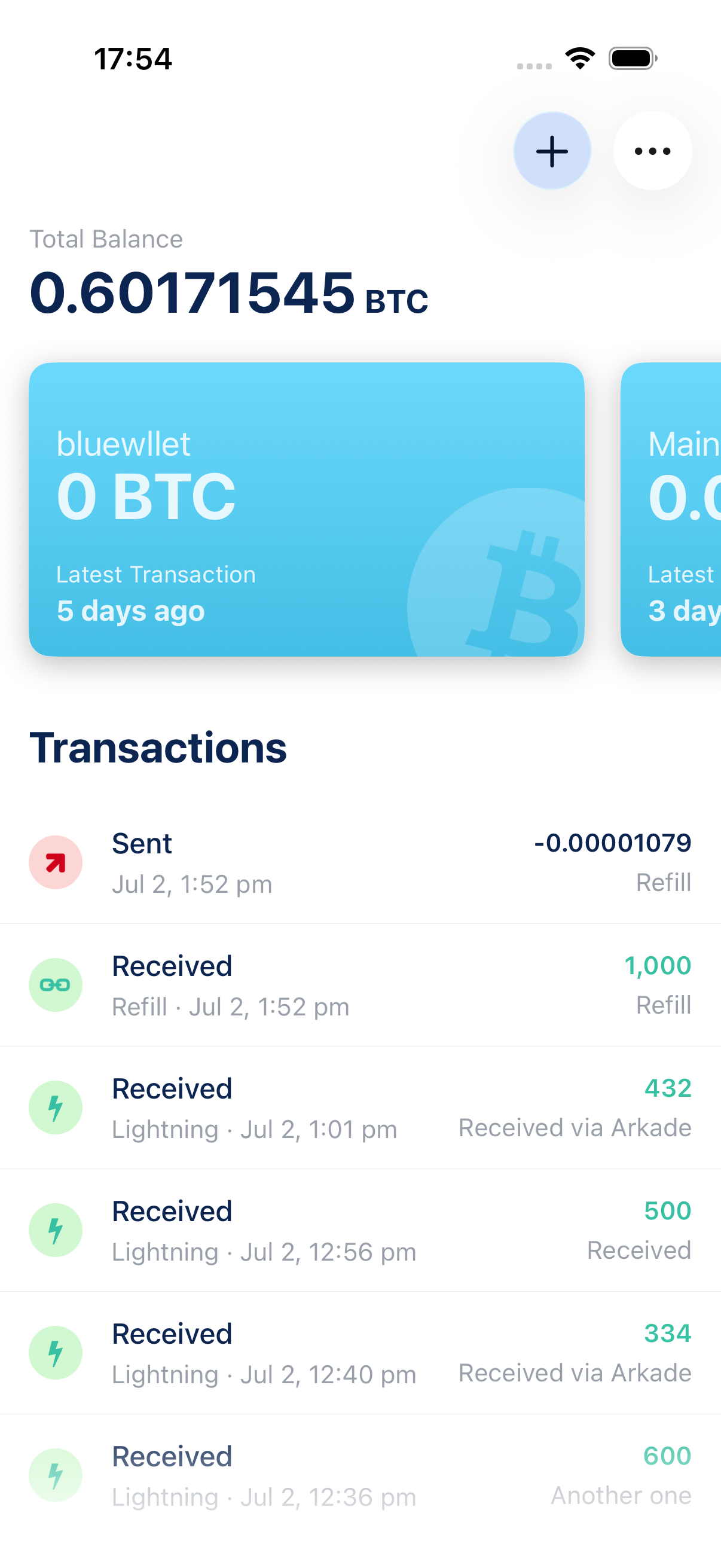
The home screen shows your wallets as cards in a carousel. Manage Wallets is where you reorder them, hide balances, and jump quickly into a wallet.
Open Manage Wallets
Long-press any wallet card on the home screen.
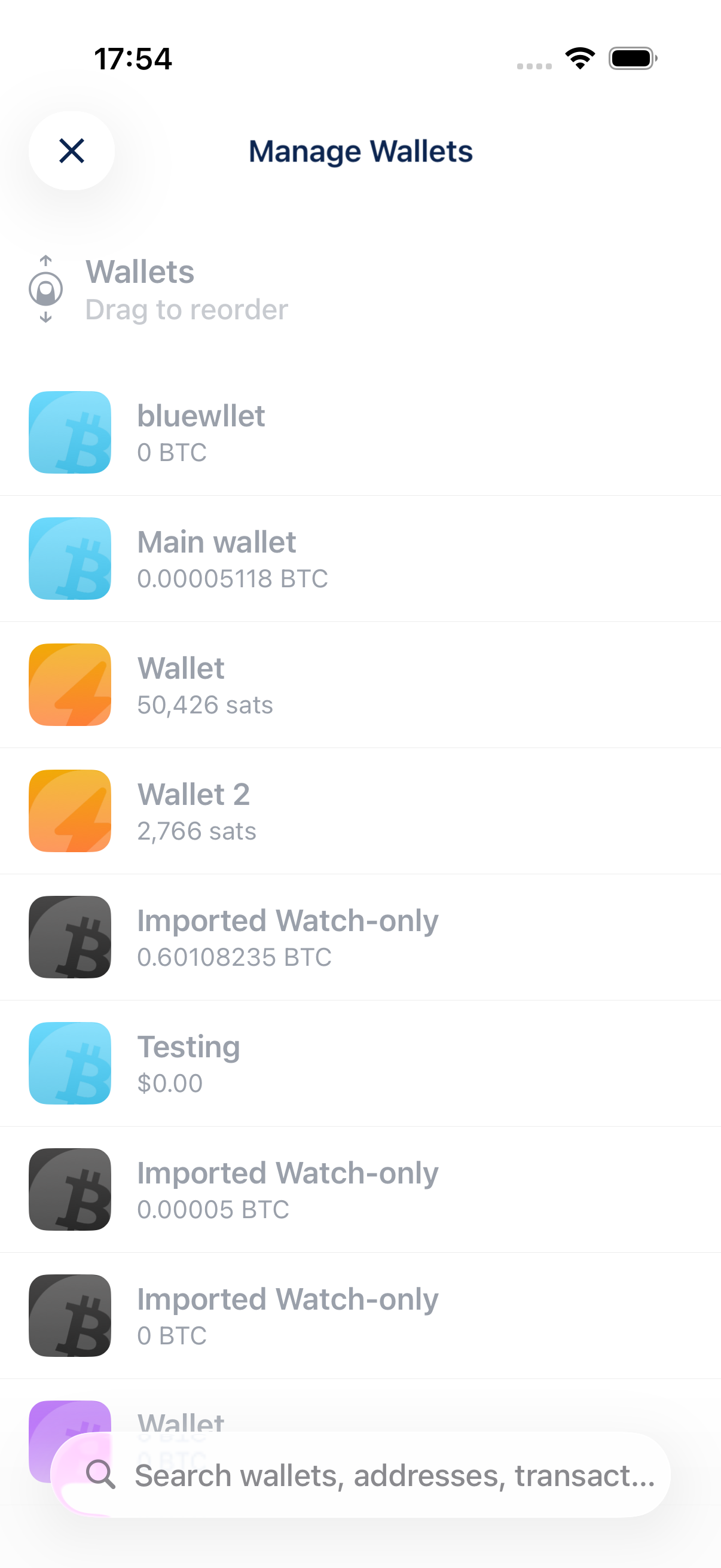
The Manage Wallets screen opens with a list of all your wallets.
Reorder wallets
When you have more than one wallet, drag a row up or down to change the order on the home screen. The hint at the top reminds you that rows can be dragged.
Hide a wallet balance
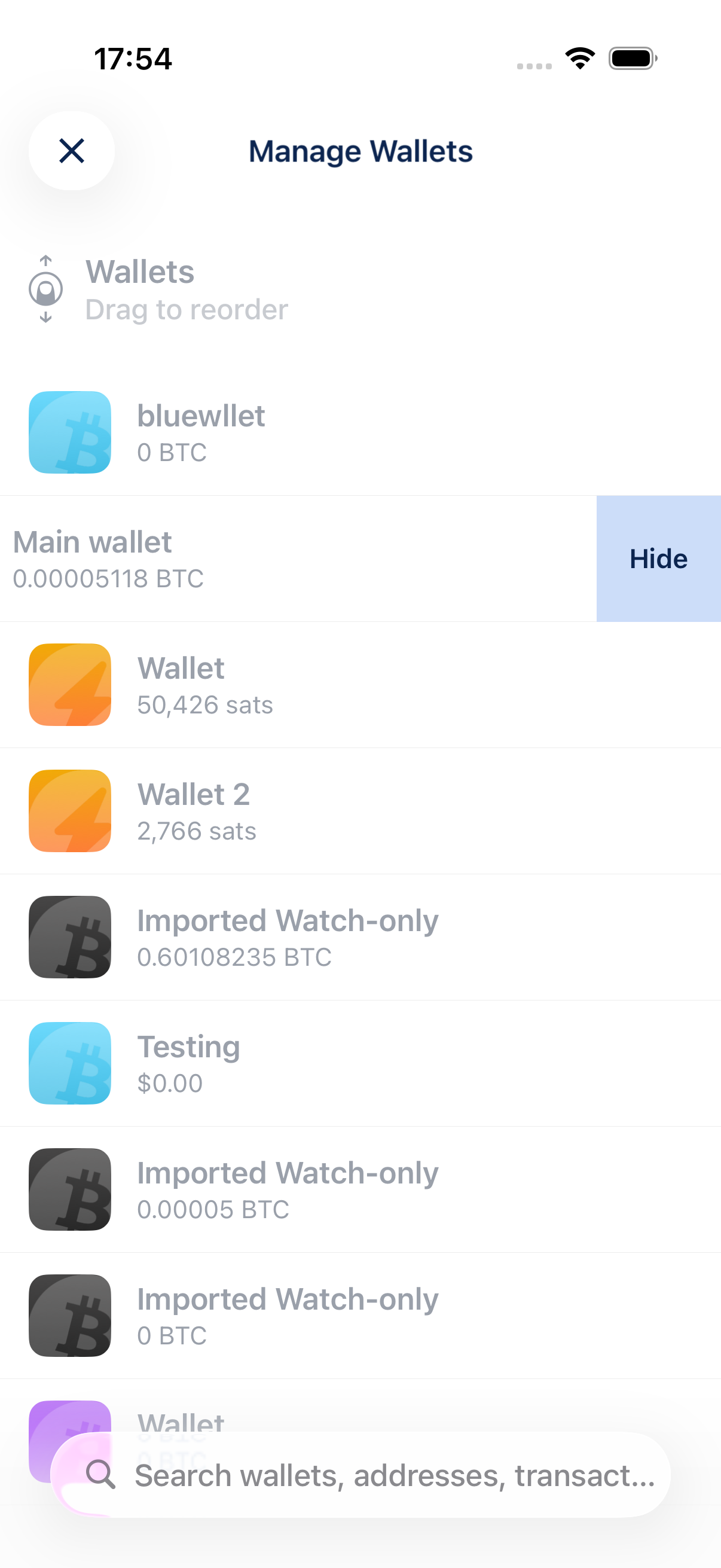
Swipe left on a wallet row to reveal Hide. Tap it to conceal the balance in this list (and on the home screen card).
The balance is replaced with a hidden placeholder until you show it again.
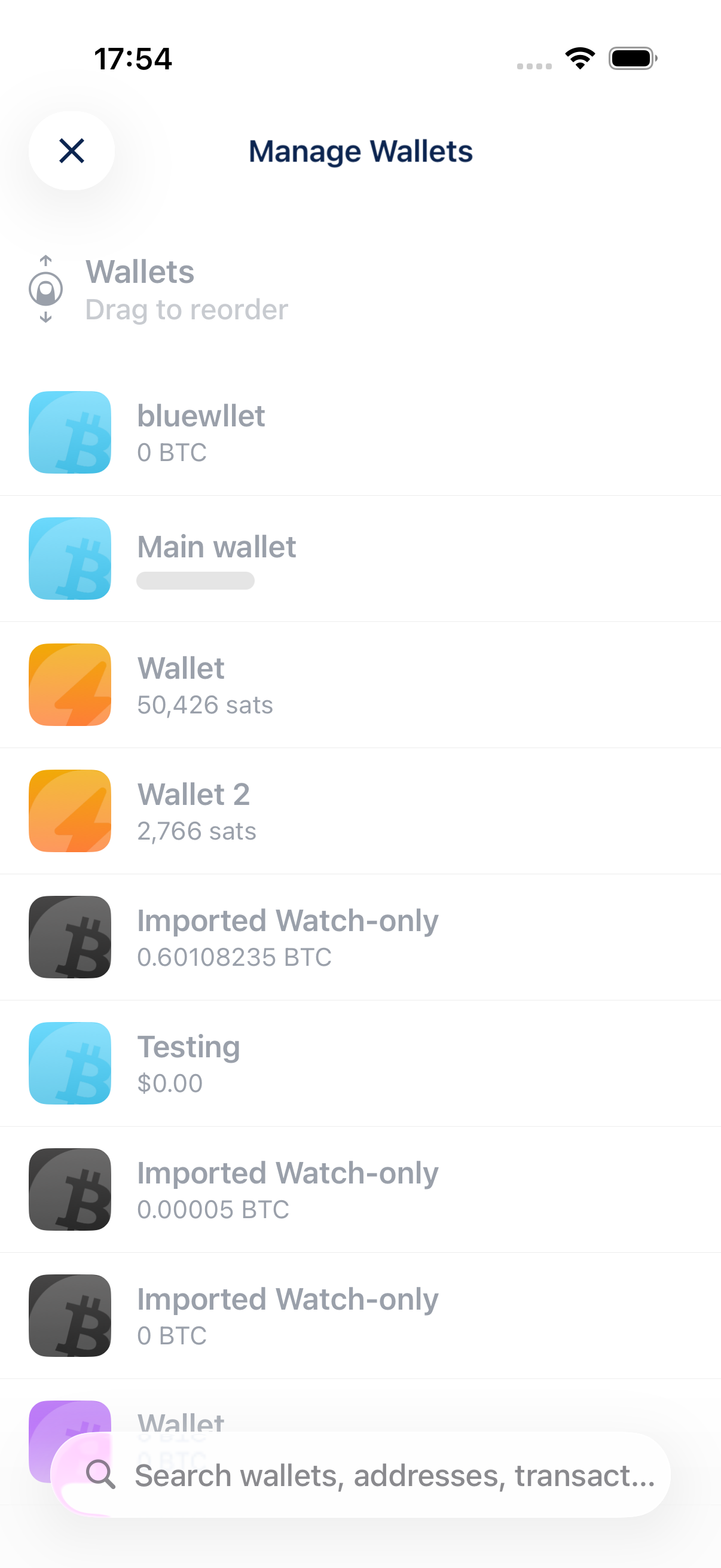
Swipe left again and tap Show to bring the balance back.
Other actions
- Tap a wallet in the list to open it.
- Tap ✕ in the top-left corner to return to the home screen.
Tips
- Hiding a balance is useful on a shared or demo device. It does not affect the wallet itself.
- Use search on this screen to find a wallet by name, address, transaction, or memo.