Coin control lets you view, label, freeze, and hand-pick the UTXOs (coins) used when you send Bitcoin. That helps with privacy, fee management, and keeping certain outputs separate.
This guide applies to on-chain Bitcoin wallets that already have coins.
Open coin control from wallet details
Open your Bitcoin wallet, tap the wallet menu, then go to Wallet details.
Scroll to the Coins row and tap it to open Coin Control.
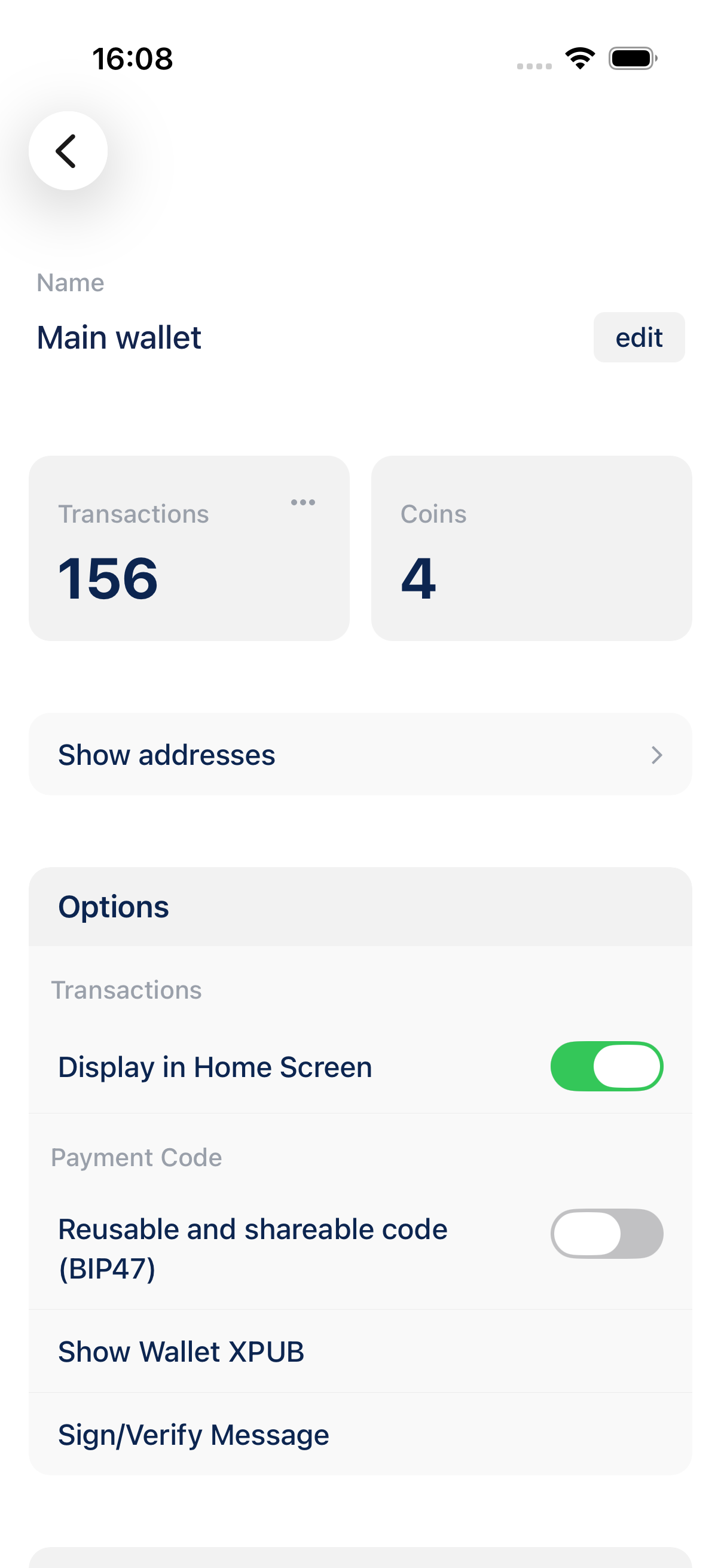
Coin control overview
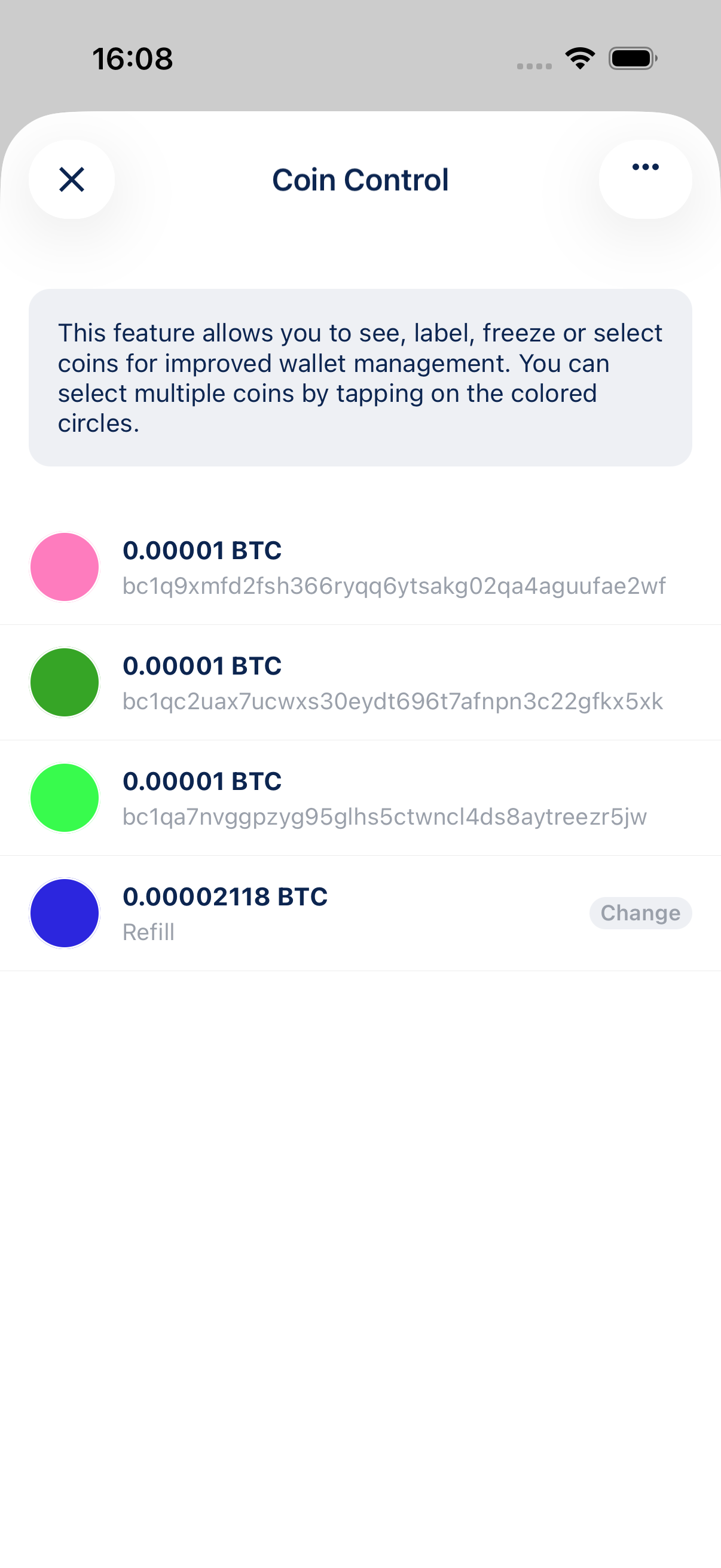
The Coin Control screen lists every spendable coin in the wallet. Each row shows the amount, address or label, and badges for change or frozen outputs.
The tip at the top explains that you can tap the colored circles to select multiple coins.
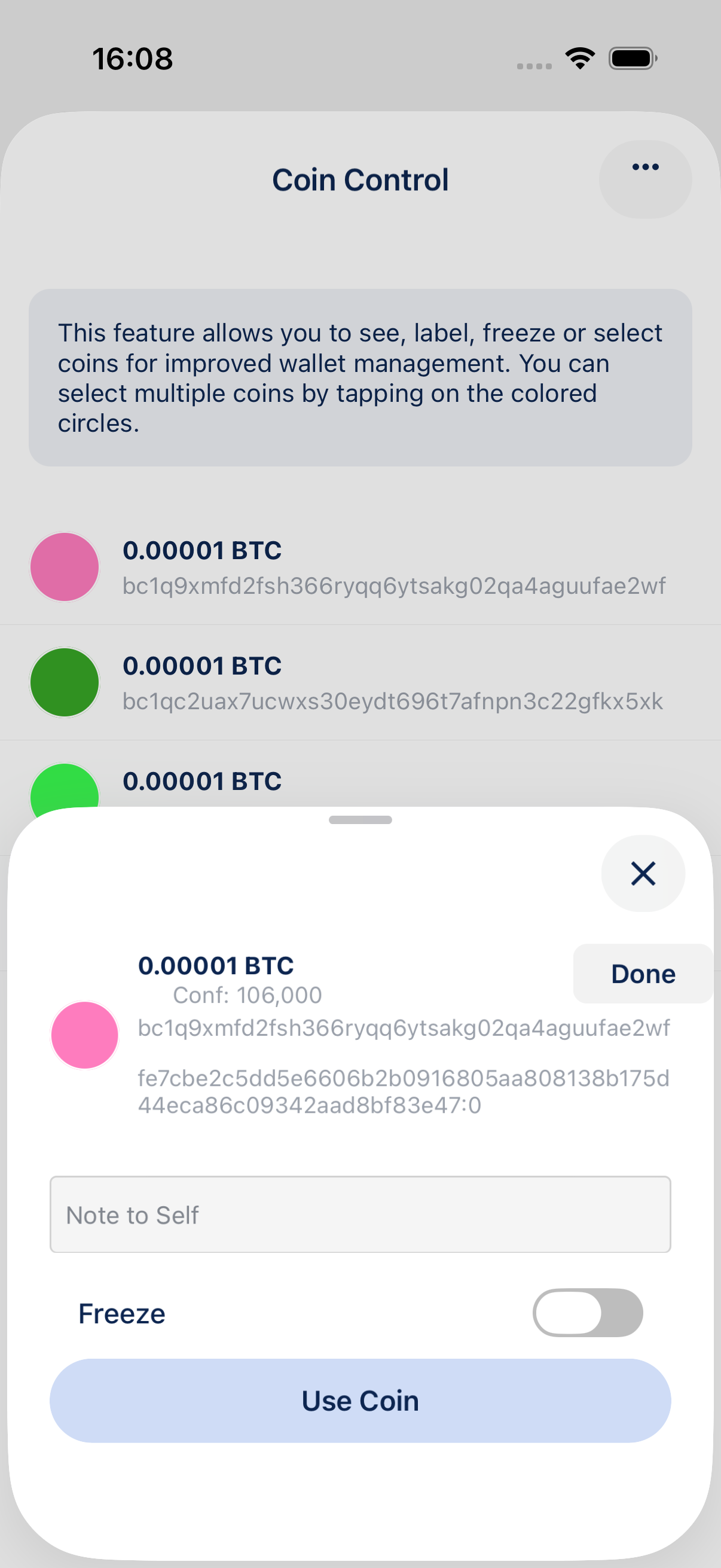
View or edit a single coin
Tap a coin row (not the circle) to open its detail sheet. From here you can:
- Add or edit a label (memo) for the coin
- Freeze or unfreeze the coin so it is not spent accidentally
- Tap Use coin to start a send with only that output
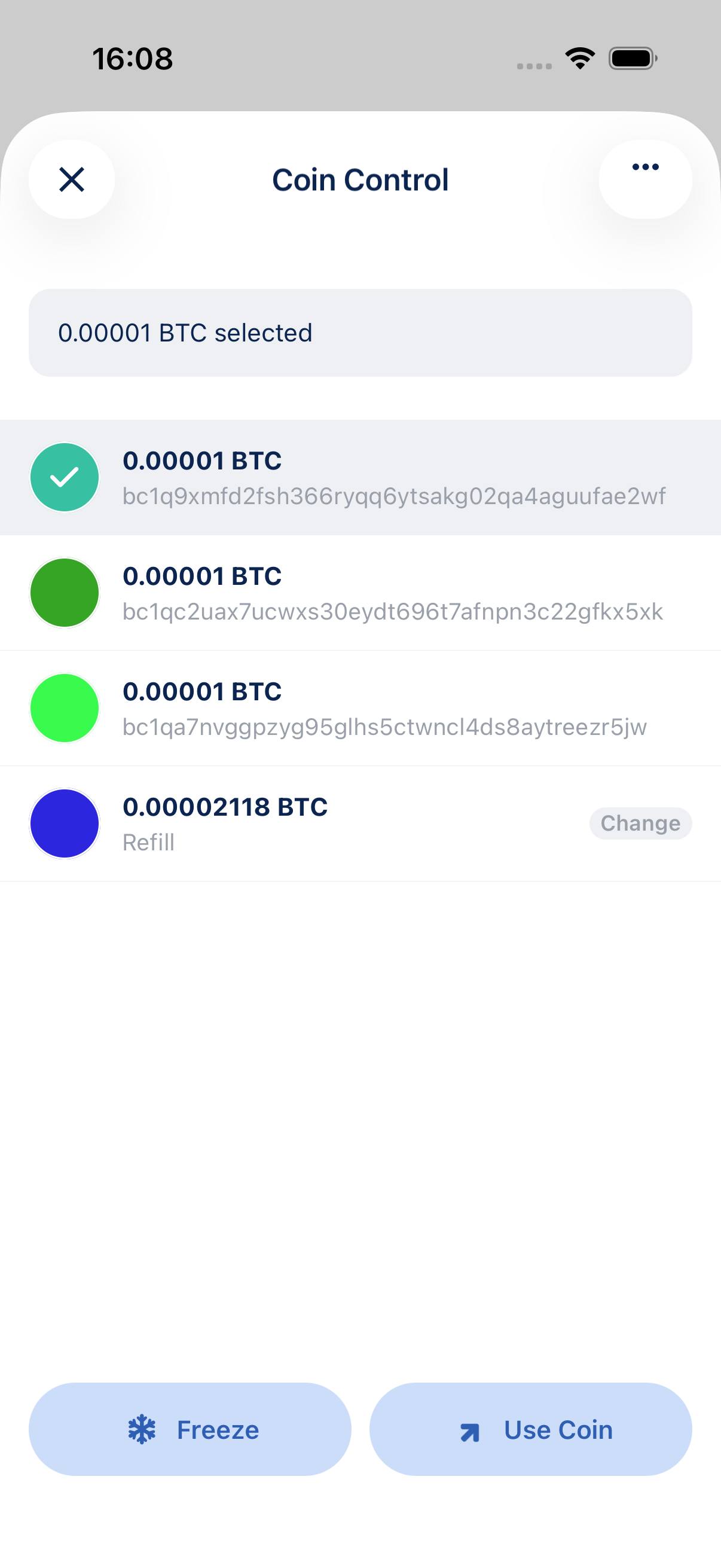
Select coins for a send
To spend specific coins, tap the colored circle on one or more rows. Selected coins are highlighted and a bar appears at the bottom with Freeze / Unfreeze and Use coin(s).
Tap Use coin or Use coins to open the send screen with only those outputs selected.
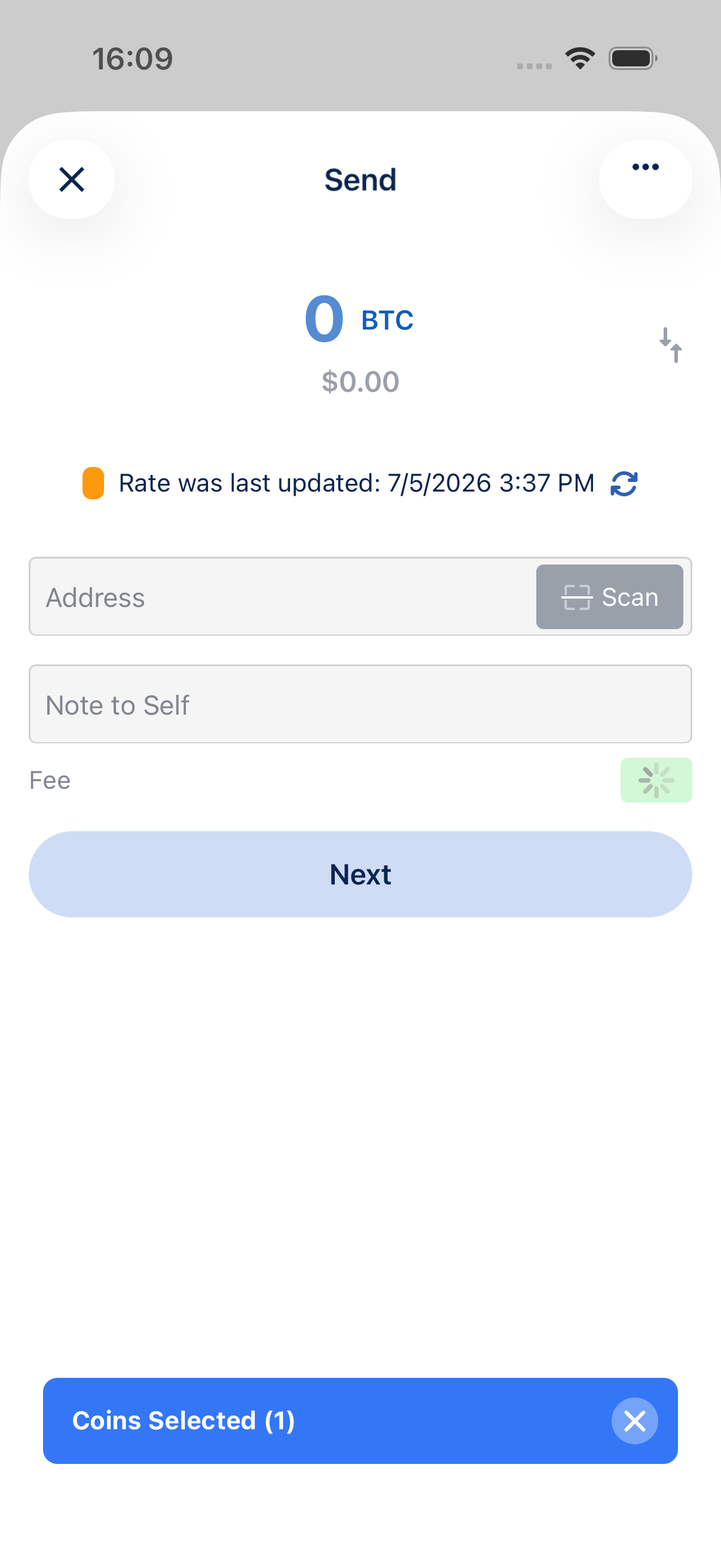
The blue Coins selected banner confirms which outputs will be used. Tap it to return to Coin Control and change your selection, or tap × to clear the selection and use automatic coin selection again.
Tips
- Frozen coins stay in the wallet but are skipped when building transactions unless you explicitly select them in Coin Control.
- Coin control is available from Send as well. Open the send screen menu and choose Coin control for the same view.