BlueWallet can export a wallet’s full transaction history as a CSV file: a spreadsheet-friendly format you can open in Excel, Google Sheets, Numbers, or import into accounting tools.
Each wallet exports separately. If you use multiple wallets, repeat the steps below for each one you need to report on.
Why export?
A CSV export helps you keep accurate records without manually copying transactions from the app:
- Accounting: reconcile income and expenses against bank or exchange records.
- Taxes: gather dates, amounts, and transaction IDs to calculate gains, losses, or cost basis (often with help from a tax tool or accountant).
- Bookkeeping: track business payments, invoices, or personal budgets over time.
- Audits: keep an offline backup of what happened in a wallet, with memos you added in BlueWallet.
BlueWallet does not provide tax advice. The export is a raw record of your wallet activity. How you use it for reporting is up to you and your jurisdiction.
Open wallet details
From the home screen, open the wallet you want to export. Tap ⋯ in the top-right corner to open Wallet details.
See Wallet details for a full overview of this screen.
Export to CSV
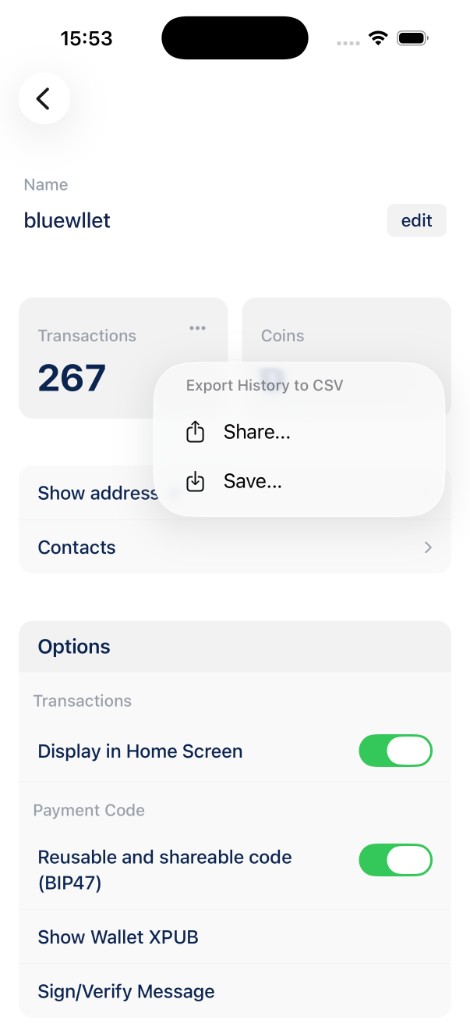
In the Transactions stat box at the top, tap the ⋯ menu on the right. Choose Export History to CSV, then:
- Share…: send the file via email, AirDrop, cloud storage, or another app.
- Save…: save the CSV directly on your device.
The file is named after your wallet (for example, bluewllet-history.csv).
What’s in the file?
Each row is one transaction. On-chain Bitcoin wallets include:
| Column | Description |
|---|---|
| Date | When the transaction occurred |
| Transaction ID | The on-chain txid (blockchain reference) |
| Amount (BTC) | Value in bitcoin (negative for sends, positive for receives) |
| Memo | Any note you saved in BlueWallet for that transaction |
Lightning wallets include the same columns plus a payment status field (success or expired).
Open the CSV in a spreadsheet app to sort, filter, or sum amounts. Many crypto tax services accept CSV uploads. Check whether they need extra columns or a specific format.
Tips
- Export regularly (for example, monthly or at tax time) so you always have an up-to-date snapshot.
- Add memos to transactions in the app before exporting. They appear in the Memo column and make records easier to match later. See Transaction status screen.
- Sent amounts show as negative numbers; received amounts as positive. Fees are included in the send total.
- This export covers one wallet only. For a complete picture, export every wallet you use.
- The menu is hidden when a wallet has no transactions yet.