A derivation path tells BlueWallet how to turn your recovery phrase into addresses. Most wallets use a standard path, but some apps use a custom one. If automatic discovery does not find your wallet, you can enter the path manually.
The usual flow is: enter your seed, enable Search accounts, run discovery, then open Use custom derivation path.
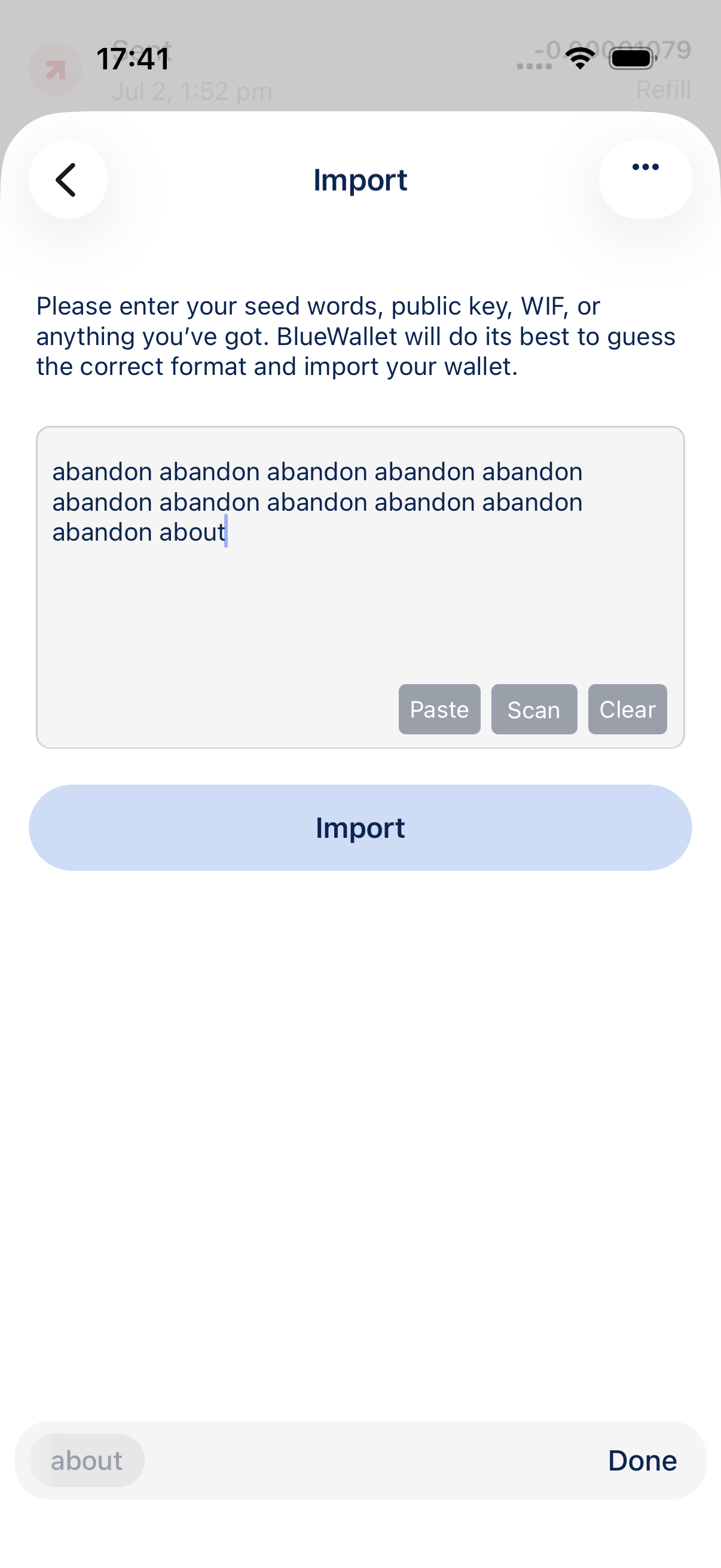
Enter your recovery phrase
Go to the import screen and enter your backup words.
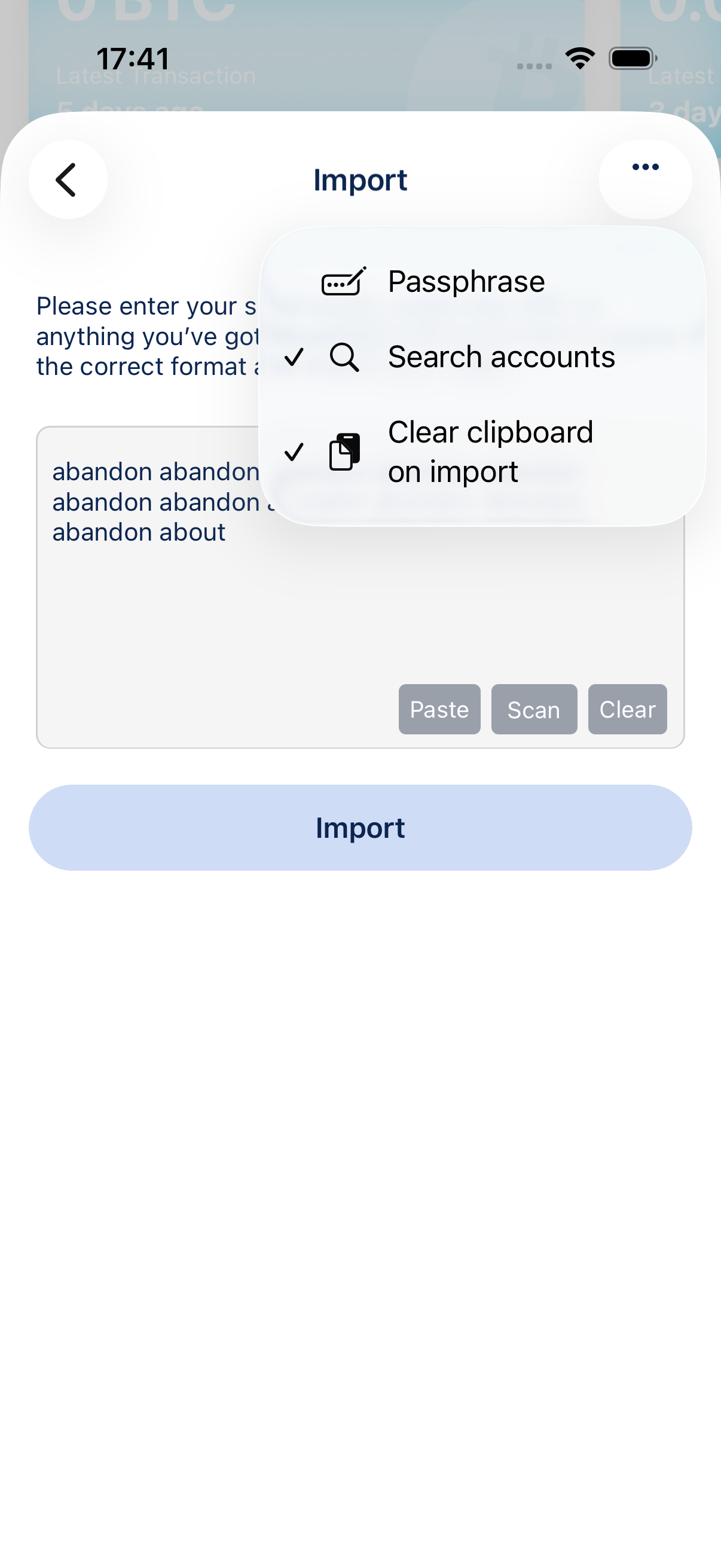
Enable Search accounts
Tap ⋯ in the top-right corner and turn on Search accounts. This scans a wider set of known paths before you try a custom one.
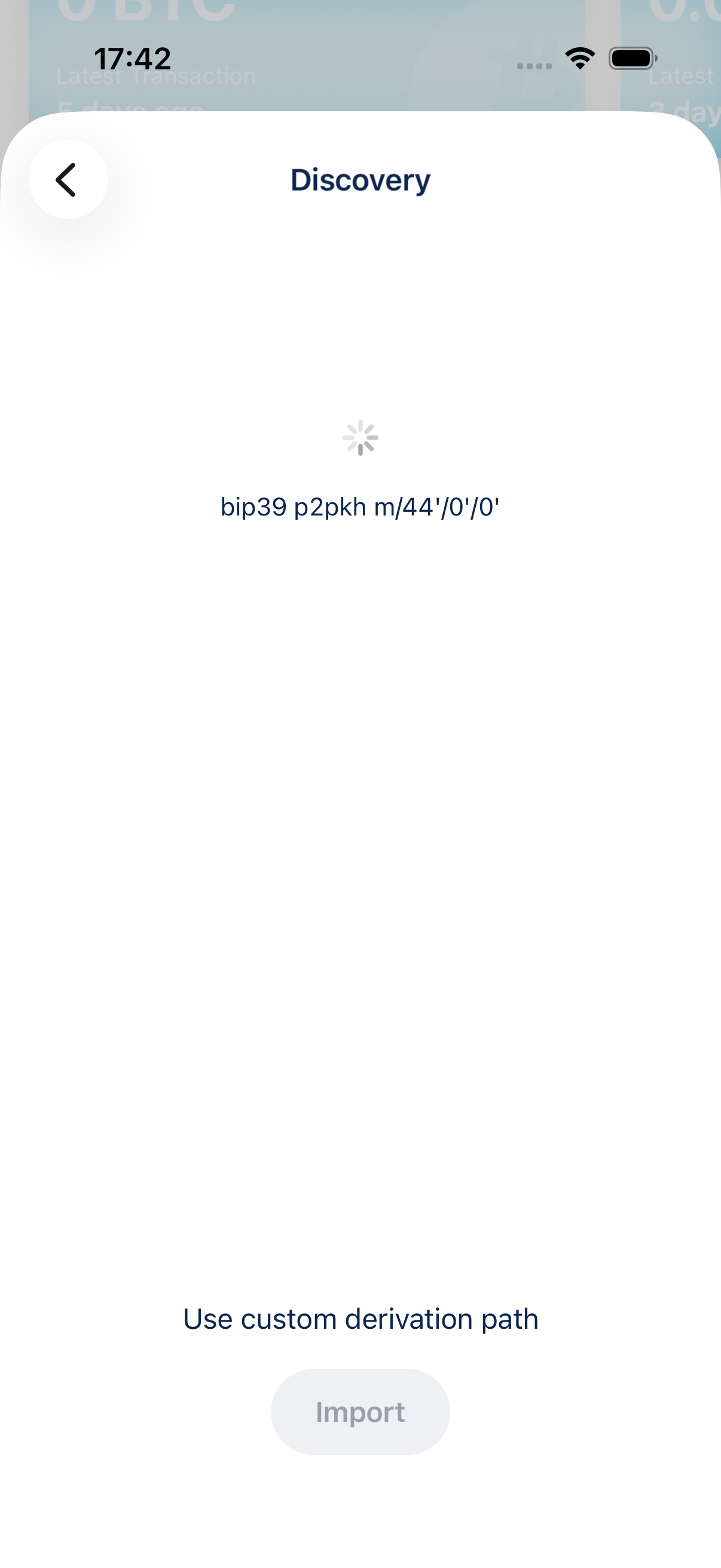
Tap Import. BlueWallet opens the Discovery screen and lists wallets it finds. This step can take longer when Search accounts is on.
Enter a custom derivation path
If your wallet still is not listed, tap Use custom derivation path at the bottom of the discovery screen.
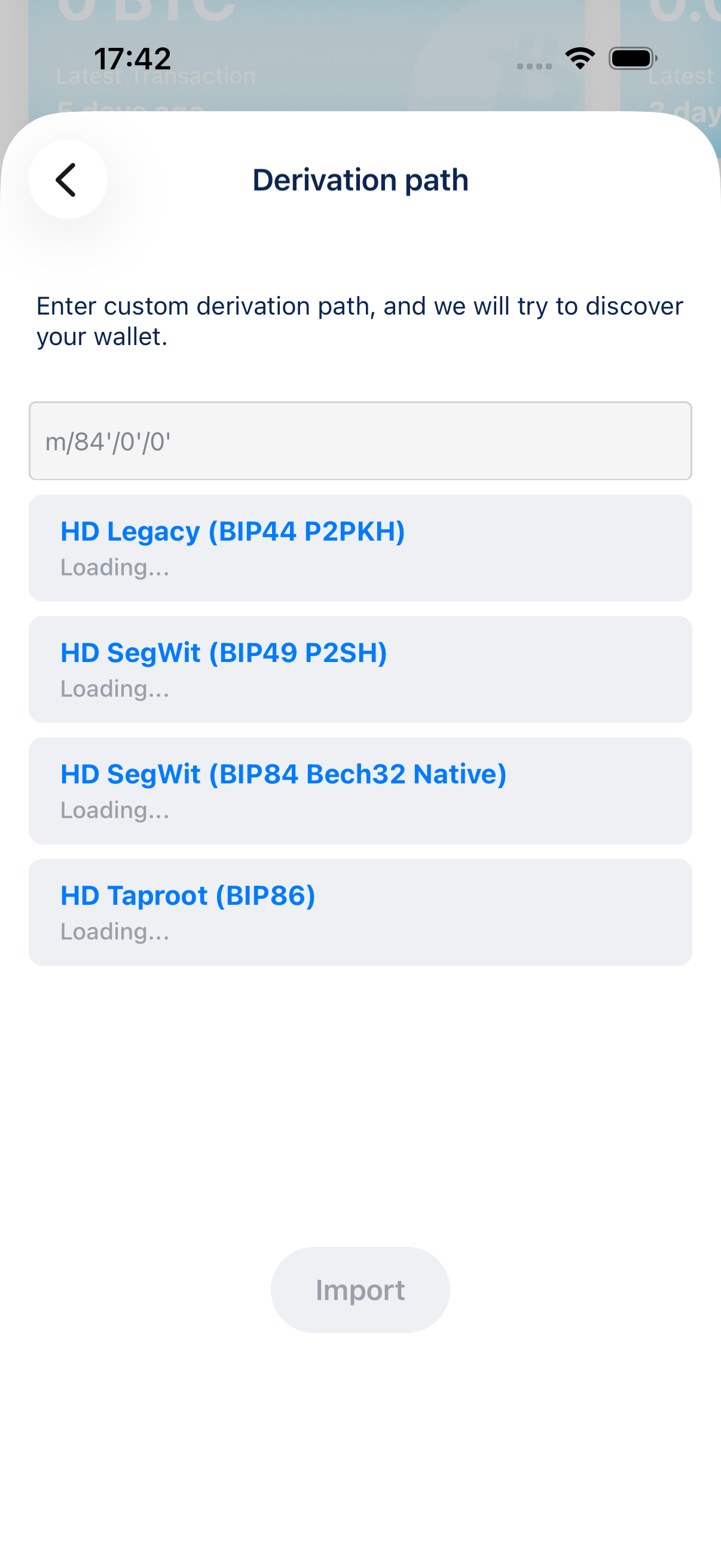
Type the path for your wallet, for example m/84'/0'/0' for native SegWit (BIP84) or m/49'/0'/0' for nested SegWit (BIP49). BlueWallet checks several address types for that path and shows whether each was used on-chain.
Select the wallet type that shows Found, then tap Import.
When to use it
- You know the exact derivation path from the wallet or app that created the backup.
- Discovery with Search accounts finds wallets, but none match your balance or addresses.
- You are recovering from hardware or software that used a non-standard path.
Tips
- Common Bitcoin paths include
m/44'/0'/0'(legacy),m/49'/0'/0'(nested SegWit),m/84'/0'/0'(native SegWit), andm/86'/0'/0'(Taproot). - A wrong path will not expose someone else’s funds. It simply derives a different, empty wallet.
- If you also used a BIP39 passphrase, enable Passphrase before importing so discovery uses the correct seed.