Wallet details is the settings screen for a single wallet. Open it from the wallet screen by tapping ⋯ in the top-right corner. From here you can rename the wallet, review stats, change display options, and access backup or advanced information.
Name and stats
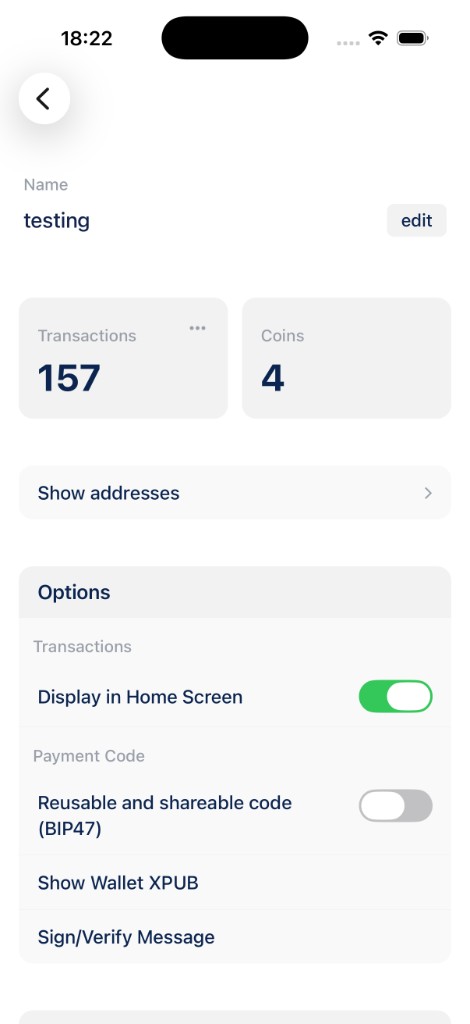
At the top you see the wallet Name. Tap edit to rename it.
The two stat boxes show:
- Transactions: how many on-chain transactions this wallet has. The ⋯ menu on this box can export your transaction history to CSV.
- Coins: how many spendable UTXOs (coins) the wallet holds. Tap it to open Coin control when coins are available.
Show addresses lists the receive addresses generated by this wallet.
Options
The Options section controls how the wallet behaves:
- Display in Home Screen: when on, this wallet’s transactions appear in the main feed below the wallet carousel. Turn it off to hide activity from the home screen while keeping the wallet.
- Reusable and shareable code (BIP47): enables a payment code for private, reusable receiving addresses. Not all services support BIP47.
- Show Wallet XPUB: displays the extended public key. Useful for watch-only setups or importing into another app. Safe to share for viewing balances; never share your seed phrase.
- Sign/Verify Message: prove ownership of an address by signing a message, or check a signature from someone else. See Sign and verify a message.
Wallet types differ. Lightning, multisig, and watch-only wallets may show additional rows here.
Advanced, backup, and delete
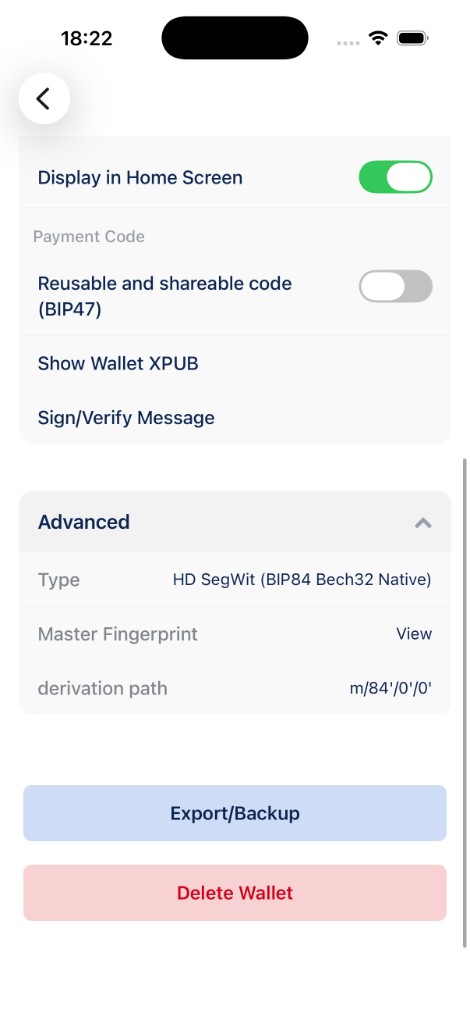
Scroll down and tap Advanced to expand technical details:
- Type: the wallet standard (for example, HD SegWit BIP84 Bech32 Native).
- Master Fingerprint: tap View to see the key fingerprint used by hardware wallets and PSBT workflows.
- Derivation path: the BIP32 path used to derive addresses (for example,
m/84'/0'/0').
Below Advanced:
- Export/Backup: save your recovery phrase or other export format. See Backup and export a wallet for a full walkthrough.
- Delete Wallet: removes the wallet from this device. You must confirm, and if the wallet still has a balance you will be asked to enter the amount as a safety check. Your backup is required to recover funds after deletion.
Tips
- Renaming a wallet only changes the label in BlueWallet. It does not affect addresses or your backup.
- Turning off Display in Home Screen does not delete transactions; it only hides them from the home feed.
- Always back up before deleting a wallet or switching devices.