Plausible Deniability lets you create a second, fully separate encrypted storage inside BlueWallet. Each storage has its own password. Under pressure, you can unlock the decoy storage while your main wallets stay hidden behind a different password.
This feature requires Password Protected to be enabled first. It is available on iOS and Android.
How it works
BlueWallet stores your wallets in an encrypted container on your device. With Plausible Deniability, the app keeps multiple encrypted containers (called buckets). Each password unlocks exactly one of them.
When you open the app, the password you enter decides which storage you see. There is no switch inside the app. The storages are completely separate: wallets, transaction history, and settings saved in one storage do not appear in the other.
The second storage is real, not a visual trick. It is a normal encrypted storage where you can create wallets, receive and send bitcoin, and use Lightning. Many people keep a small balance there so the decoy looks believable if someone forces them to unlock the app.
Your main storage stays encrypted in the background. As long as you do not reveal its password, those wallets cannot be opened from the device.
Before you start
- Enable Password Protected on Settings → Security. See Password Protected for the full steps.
- Back up every wallet’s recovery phrase in both storages before you rely on this feature. BlueWallet cannot recover a forgotten password, and removing encryption from one storage permanently deletes all other storages without recovery.
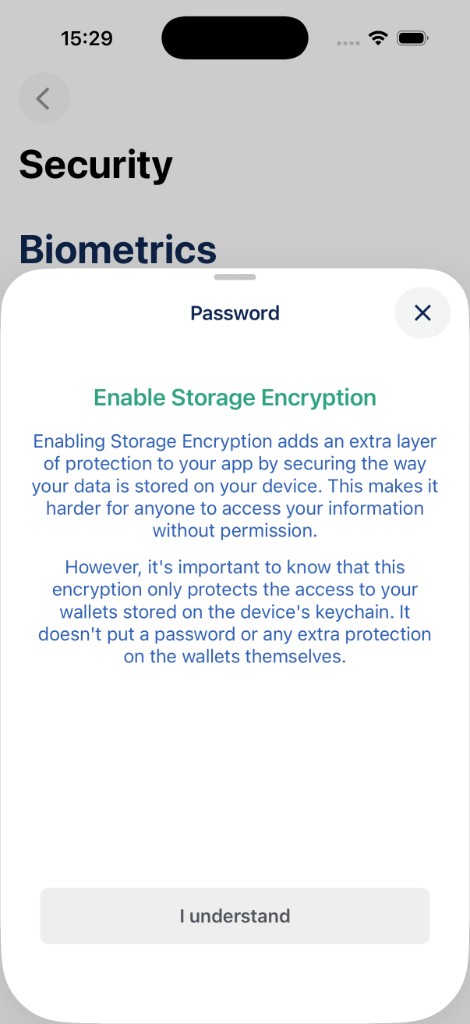
When you turn on Password Protected, read the explanation and choose your main storage password:
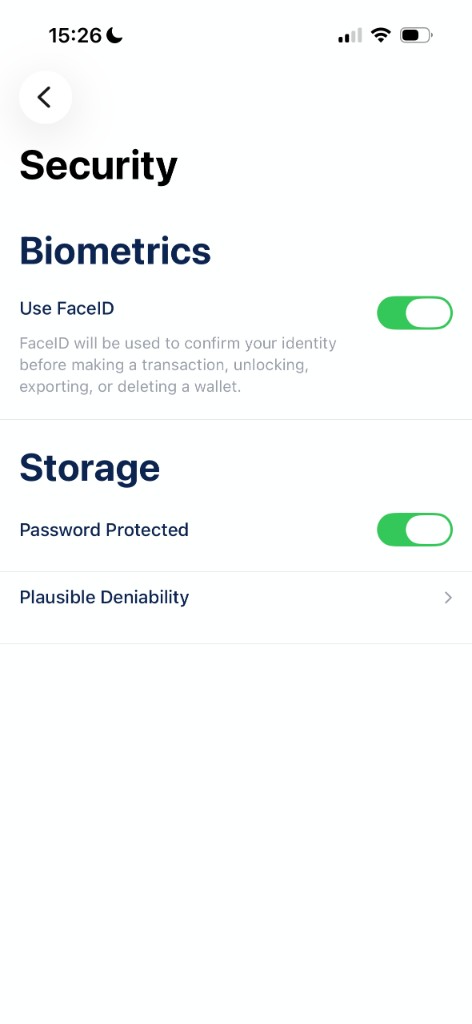
Once enabled, the Security screen shows Plausible Deniability below the Password Protected toggle:
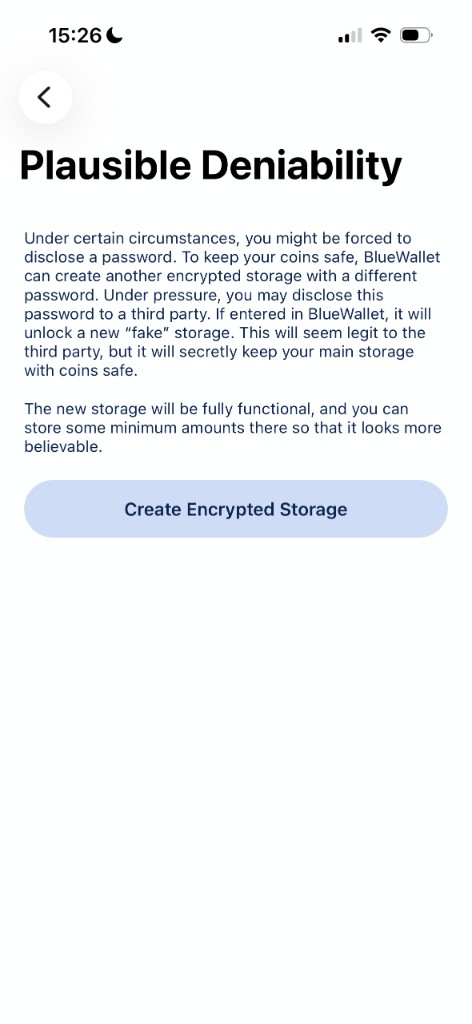
Create a second storage
- Open Settings → Security.
- Tap Plausible Deniability.
- Read the explanation on the screen.
- Tap Create Encrypted Storage.
- Enter a new password and confirm it.
The decoy password must be different from your main storage password. If you reuse a password that already unlocks a storage, BlueWallet shows an error and asks for another one.
After creation, BlueWallet opens the new storage. It starts empty. Create wallets, import seeds, or move a small amount of bitcoin there if you want the decoy to look realistic.
Switch between storages
There is no in-app toggle to change storages. To switch:
- Close BlueWallet completely (remove it from recent apps).
- Open BlueWallet again.
- On the unlock screen, enter the password for the storage you want.
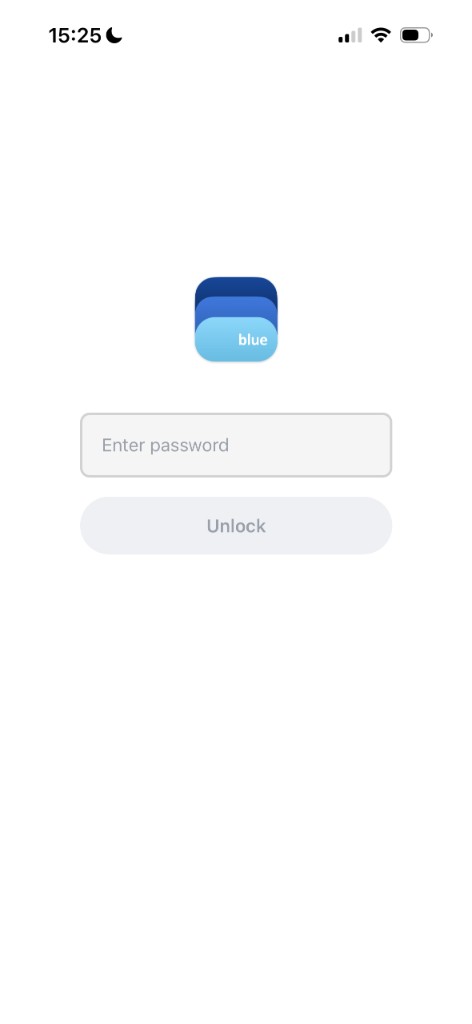
- Enter your main password to open your primary storage with your real wallets.
- Enter your decoy password to open the second storage.
Each time you launch the app, only the storage matching that password is loaded.
Remove encryption or delete a storage
To turn off Password Protected for the storage you are currently using:
- Unlock the storage you want to keep (or the one you want to decrypt).
- Go to Settings → Security.
- Turn Password Protected off.
- Confirm Decrypt Storage in the dialog.
- Enter the password for the currently unlocked storage.
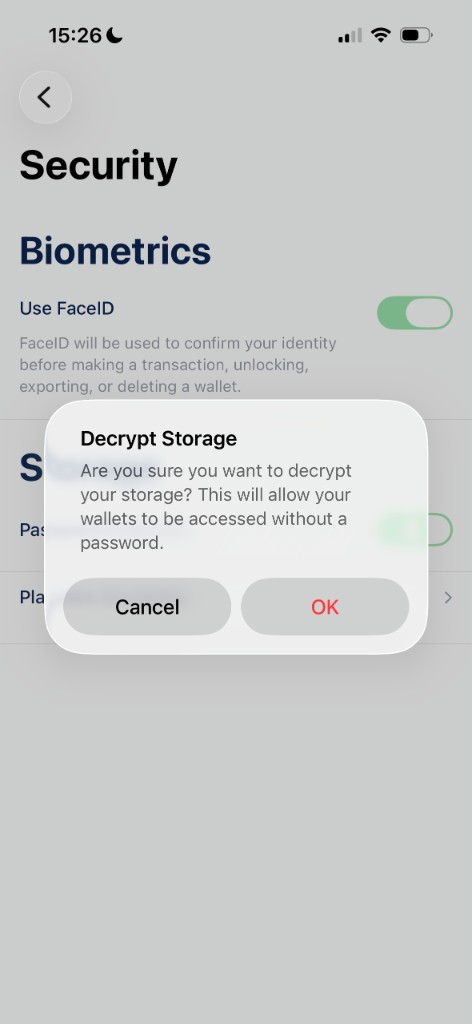
After decryption, that storage is saved without a password. Every other encrypted storage is deleted permanently. There is no undo and no way to recover wallets that lived only in the removed storage.
Important details:
- You can only decrypt the storage you are currently inside. You cannot turn off encryption for your main storage while the decoy is unlocked, or the other way around, without first switching storages at the unlock screen.
- If you decrypt the decoy storage, your main storage and its wallets are gone from the device unless you have seed phrase backups.
- If you decrypt your main storage, the decoy storage is gone from the device unless you backed up those wallets too.
There is no separate “delete decoy only” button. Decrypting one storage removes all others.
Back up your seed phrases
Plausible Deniability adds passwords on top of your wallets. It does not replace seed phrase backups.
- Back up recovery phrases for every wallet in every storage you use.
- Store backups somewhere safe, separate from your phone.
- If you lose a storage password and do not have seed phrases, the funds in that storage cannot be recovered.
- If you decrypt one storage and delete the others, only seed phrases let you restore the lost wallets on a new install.
See Backup and export a wallet for how to save your recovery phrases.
Tips for using a decoy storage
- Use a decoy password you can remember under stress, but that is clearly different from your main password.
- Keep a believable set of wallets in the decoy. An empty app may look suspicious.
- A small real balance in the decoy can make it more convincing, but treat it like any other hot wallet.
- Do not tell anyone how many storages you have or which password opens which one.
- Test switching storages once after setup so you know both passwords work.
Related
- Password Protected - encrypt your storage with a local password
- Backup and export a wallet - save recovery phrases before enabling encryption